


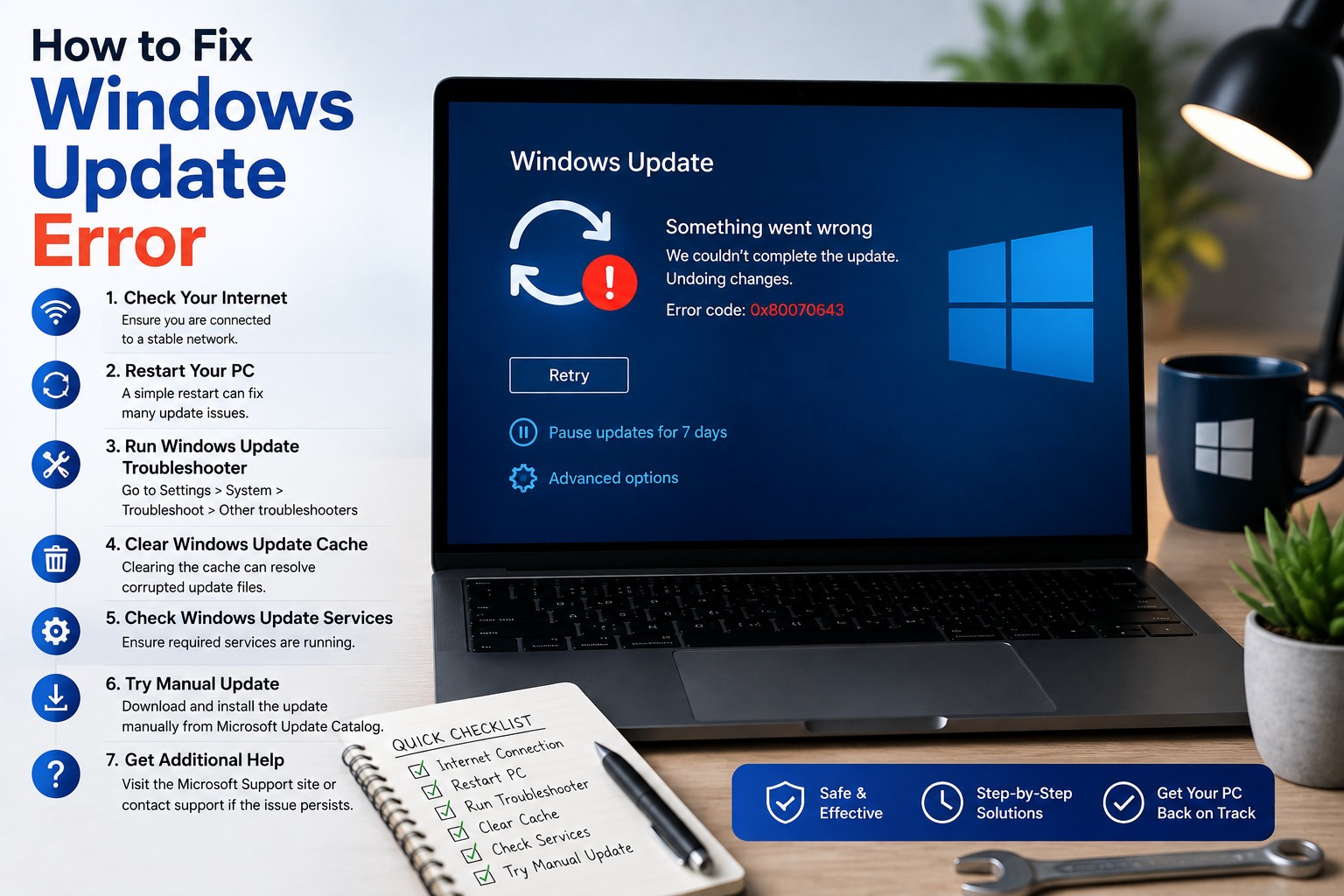
Windows Update errors usually come with a cryptic code (like 0x80070005 or 0x800f0801) that doesn’t tell you much on its own. Rather than guessing at fixes, work through these steps in order — they’re arranged from fastest/least invasive to more advanced, and cover the vast majority of update failures regardless of the specific error code you’re seeing.
Step 1: Run the Built-In Troubleshooter First
This should always be your first move — it automatically diagnoses and fixes many common causes without any manual digging.
- Go to Settings > System > Troubleshoot > Other troubleshooters
- Find Windows Update and click Run
- Restart your device once it finishes, then try the update again
Step 2: Check Your Free Disk Space
Insufficient storage is one of the most common causes of update failures, and often produces confusing error messages that don’t mention storage at all.
- You need roughly 20GB free for a 64-bit feature update (16GB for 32-bit)
- Check available space: Settings > System > Storage
- If space is tight, clear temporary files via Disk Cleanup, or move large files to external/cloud storage
Step 3: Check Your Date and Time Settings
An incorrect system clock can cause Windows Update to fail security checks and hang or error out, without any obvious indication that’s the cause.
- Go to Settings > Time & Language > Date & Time
- Turn on Set time automatically
- Click Sync now if available
Step 4: Restart, Then Check for Updates Again
It sounds too simple, but a restart clears out stuck processes and locked files that block updates from installing — many “queued” or “pending” update failures resolve after this alone.
Step 5: Clear the Windows Update Cache
Corrupted files in the update cache are a frequent cause of repeated failures. Clearing them forces Windows to re-download everything fresh.
- Press
Windows + R, typeservices.msc, and press Enter - Find Windows Update, right-click, and select Stop
- Open File Explorer and navigate to
C:\Windows\SoftwareDistribution - Delete everything inside this folder (it will safely regenerate)
- Go back to Services, right-click Windows Update, and select Start
- Try the update again
Step 6: Run SFC and DISM Scans
These built-in tools repair corrupted system files that can block updates from installing.
- Open Command Prompt as Administrator
- Run:
sfc /scannowand let it complete - Then run:
DISM /Online /Cleanup-Image /RestoreHealth - Restart and try updating again
This step can take 15-20 minutes — let it finish even if it looks stalled at certain percentages.
Step 7: Reset Network Components (WinSock Reset)
If the specific error mentions a connection problem (e.g., “We couldn’t connect to the update service”), even when your internet is otherwise fine, a corrupted network stack is often the real cause.
- Open Command Prompt as Administrator
- Run:
netsh winsock reset - Restart your computer
Step 8: Temporarily Disable Third-Party Antivirus
Some third-party antivirus and firewall software interferes with the update process, particularly around driver and security patch installation. Temporarily disable it (not just Windows Defender — a separate installed antivirus product), attempt the update, and re-enable it afterward regardless of outcome.
Step 9: Try a Clean Boot
If updates consistently fail and nothing above has worked, a background app or service may be silently conflicting with the update process.
- Press
Windows + R, typemsconfig, and press Enter - Under the Services tab, check Hide all Microsoft services, then click Disable all
- Under the Startup tab, open Task Manager and disable all startup items
- Restart and try the update again
If it succeeds, re-enable services/startup items one group at a time to identify the conflict.
Step 10: Download and Install the Update Manually
If the update still won’t install through Settings, you can bypass the automatic process entirely.
- Note the specific KB number from the error (e.g., KB5034441)
- Search for it on the Microsoft Update Catalog
- Download the correct package for your system (check whether you’re on 32-bit or 64-bit)
- Run the installer directly
Step 11: Look Up Your Specific Error Code
If you’ve worked through the general steps above and the same error persists, search your exact error code (e.g., “0x80070005 Windows Update”) — some codes point to a specific, narrow cause (like a permissions issue or a corrupted specific component) that has a more targeted fix than the general steps here.
If Windows Update problems are happening alongside general system slowness, it’s worth ruling out a broader performance issue — see our complete guide to fixing a slow computer for related troubleshooting.
