


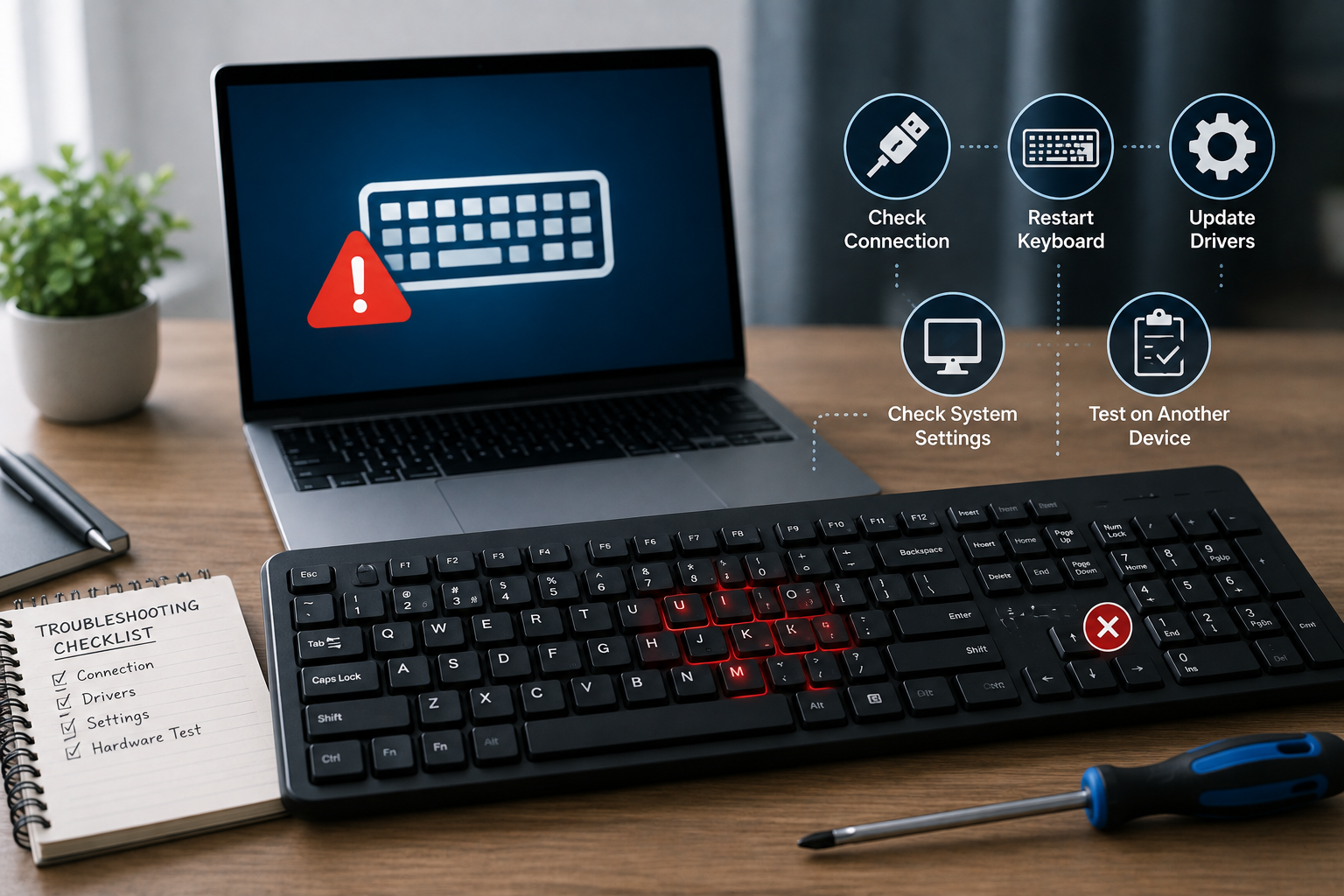
A keyboard that suddenly stops typing can mean a lot of different things — a full dead keyboard, specific keys not registering, wrong characters appearing, or a connection issue with a wireless keyboard. The fix depends heavily on which of these you’re actually dealing with, so start by narrowing down the problem before trying random fixes.
Step 1: Figure Out if It’s Hardware or Software
This single test saves the most time. It tells you whether to focus on physical troubleshooting or software settings.
- Open the on-screen keyboard (Windows: search “On-Screen Keyboard” in the Start menu; Mac: System Settings > Accessibility > Keyboard > Accessibility Keyboard) and click a few keys with your mouse.
- If typing works this way, your keys/keyboard aren’t physically broken — it’s a driver, software, or connection issue.
- If even this doesn’t register in a text field, something deeper (OS-level or app-specific) is going on.
- If you have an external keyboard, plug it in and see if it works where your built-in one doesn’t. If the external one works fine, the problem is isolated to your laptop’s keyboard specifically — likely hardware or a driver conflict.
Step 2: Rule Out the Simple Stuff First
- Restart your computer. This alone fixes a surprising number of keyboard glitches, especially after an update.
- Disconnect other USB/Bluetooth devices. Sometimes another peripheral conflicts with your keyboard’s driver or port.
- Check for physical debris. Turn the laptop off, tilt it, and use compressed air between the keys — crumbs and dust are a very common cause of individual keys not registering.
- If it’s a wireless keyboard, check the batteries and make sure the USB receiver is plugged in (it’s often small and easy to lose track of), or that Bluetooth pairing hasn’t dropped.
Step 3: Turn Off Filter Keys and Sticky Keys
These are accessibility features that can get toggled on accidentally (often by holding Shift too long) and cause keys to behave strangely, register slowly, or not register at all.
- Windows: Control Panel > Ease of Access > Change how your keyboard works > uncheck Filter Keys and Sticky Keys
- Mac: System Settings > Accessibility > Keyboard > check that Slow Keys and Sticky Keys are off
Step 4: Check Your Keyboard Language and Layout
If your keyboard is typing the wrong characters (not typing nothing, but typing the wrong thing), this is almost always a language/layout mismatch, not a hardware fault.
- Windows: Settings > Time & Language > Language & Region — confirm the correct keyboard layout is selected and set as default
- Mac: System Settings > Keyboard > Input Sources — remove any layouts you don’t use to avoid accidentally switching
Step 5: Reinstall or Update the Keyboard Driver (Windows)
Corrupted drivers are one of the most common causes of a keyboard that stops responding out of nowhere.
- Right-click the Start button and open Device Manager
- Expand Keyboards
- Right-click your keyboard entry and select Uninstall device
- Restart your computer — Windows will automatically reinstall the driver
Working through a broader slowdown alongside the keyboard issue? Check out our complete guide to fixing a slow computer for related troubleshooting steps.
Fast Startup can sometimes prevent peripherals, including built-in keyboards, from initializing properly on boot.
- Press
Windows + R, typecontrol, and hit Enter - Go to Hardware and Sound > Power Options
- Click Choose what the power buttons do
- Click Change settings that are currently unavailable
- Uncheck Turn on fast startup, then save and restart
Step 7: Run the Keyboard Troubleshooter (Windows)
Windows has a built-in troubleshooter that can catch common configuration issues automatically:
- Settings > System > Troubleshoot > Other troubleshooters
- Find Keyboard and run it
Step 8: Check for Liquid Damage or Physical Wear
If specific keys have stopped working after a spill, don’t wait — power off the device immediately, unplug it, and if possible remove the battery. Liquid damage often affects only a cluster of keys at first, but can spread. This is one case where continuing to use the keyboard can make things worse, and professional repair is usually the safer route.
When to Replace vs. Repair
- External/USB keyboards: These are inexpensive to replace. If troubleshooting doesn’t fix it within 10-15 minutes, it’s often faster and cheaper to just buy a new one.
- Laptop built-in keyboards: Replacement is more involved and typically requires a technician, unless you’re comfortable opening the laptop yourself. If only a few keys are affected and the laptop is otherwise in good shape, repair is usually worth it. If the whole keyboard is unresponsive and it’s an older machine, weigh the repair cost against the value of the laptop itself.
Working through a broader slowdown alongside the keyboard issue? Check out our complete guide to fixing a slow computer for related troubleshooting steps.
