


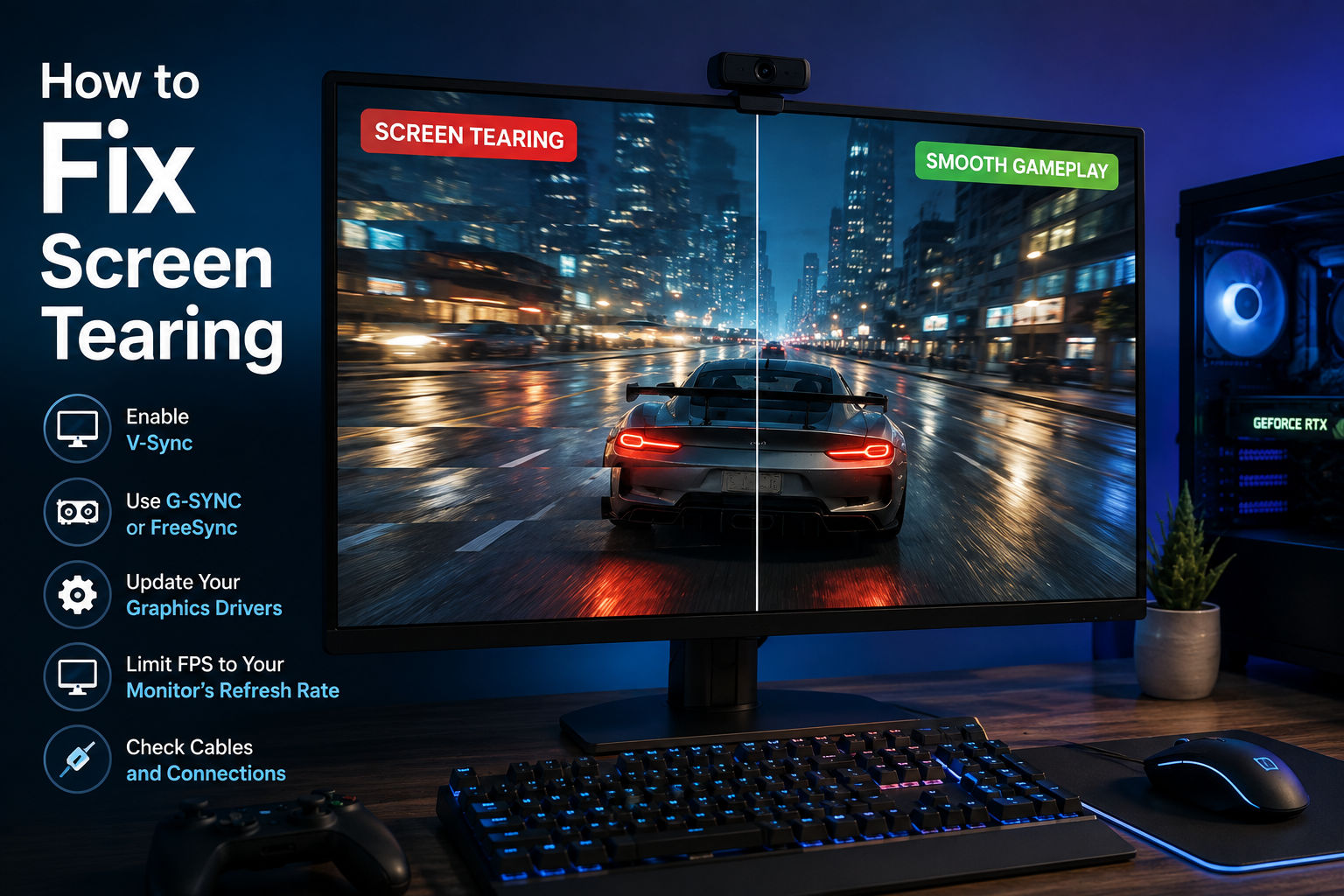
Screen tearing shows up as a horizontal line (or several) splitting your screen, where the image above the line doesn’t quite match up with the image below it. It happens when your GPU is sending frames faster or out of sync with your monitor’s refresh rate — most noticeable during fast horizontal movement, like panning in a game or quickly scrolling a webpage.
The good news: it’s almost always fixable with settings, not hardware replacement. Here’s how to work through it.
Step 1: Confirm It’s Actually Screen Tearing
Screen tearing looks like a clean horizontal split where the content above and below doesn’t align — most visible during fast motion. If instead you’re seeing flickering, artifacts, or discoloration, that’s a different issue (often cable or GPU-related, not sync-related), and the fixes below won’t help.
Step 2: Enable VSync
VSync (Vertical Sync) forces your GPU to match its frame output to your monitor’s refresh rate, which is the most direct fix for tearing.
- In-game: Look for a VSync toggle in the video/display settings menu and switch it on
- NVIDIA users: Right-click desktop > NVIDIA Control Panel > Manage 3D Settings > Vertical Sync > On
- AMD users: Open AMD Software > Gaming > Graphics > enable Vertical Refresh (VSync)
Trade-off: VSync can introduce input lag and may cap your frame rate at your monitor’s refresh rate, which some competitive gamers dislike. If that’s a problem, try Fast Sync (NVIDIA) or Enhanced Sync (AMD) instead — these reduce tearing with less added lag.
Step 3: Use G-Sync or FreeSync If Your Monitor Supports It
These are adaptive sync technologies that let your monitor dynamically match its refresh rate to your GPU’s output in real time, eliminating tearing without the input lag VSync can introduce.
- Check your monitor’s specs or settings menu to confirm support for NVIDIA G-Sync or AMD FreeSync
- Enable it in your GPU’s control panel (NVIDIA Control Panel or AMD Software)
- Make sure it’s also enabled at the monitor’s hardware level — some monitors need it turned on via their on-screen display menu too
Step 4: Match Your Refresh Rate and Resolution to Your GPU Output
A mismatch between your display’s set refresh rate/resolution and what your GPU is outputting is a common, easy-to-miss cause.
- Windows: Settings > System > Display > Advanced Display > confirm refresh rate is set to your monitor’s maximum supported rate
- Make sure your display resolution matches your GPU’s output resolution — mismatches here can cause tearing even with VSync on
Step 5: Update Your Graphics Drivers
Both outdated and occasionally very new/buggy GPU drivers can cause tearing.
- NVIDIA: Download the latest driver from NVIDIA’s official site or use GeForce Experience
- AMD: Use AMD Software (Adrenalin) to check for updates
- If tearing started right after a driver update, try rolling back to the previous version before assuming it’s a bigger problem
Step 6: Check Your Cable (Often Overlooked)
If you’re running a high refresh rate monitor (120Hz+), an old or low-quality HDMI/DisplayPort cable may not have the bandwidth to carry the full signal, which can cause tearing or artifacts that look similar to sync issues.
- Confirm your cable is rated for your monitor’s refresh rate and resolution (e.g., DisplayPort 1.4 for high refresh 4K)
- Try a different cable or port before assuming it’s a software problem
Step 7: Laptop Users — Check Hybrid Graphics Settings
Laptops with both integrated and dedicated GPUs (NVIDIA Optimus, AMD hybrid graphics) can experience tearing if the wrong GPU is rendering your game or video.
- Windows: Settings > System > Display > Graphics > set your game/app to use the High Performance GPU explicitly
- In NVIDIA Control Panel, check Manage 3D Settings > Preferred Graphics Processor and set it to your dedicated GPU
Step 8: Fix Tearing During Video Playback (Not Just Games)
If tearing happens while watching videos or scrolling web pages rather than gaming, it’s usually a different fix:
- In Windows, disable Hardware-accelerated GPU scheduling (Settings > System > Display > Graphics) and see if it improves — this setting occasionally introduces tearing rather than fixing it
- For browser-based tearing, check if your browser has hardware acceleration enabled in its settings and try toggling it off to test
Step 9: Turn Off Windows Game Optimizations (If It’s Causing, Not Fixing, Tearing)
Windows automatically applies “optimizations for windowed games” to some titles, which can occasionally cause tearing instead of preventing it.
- Right-click the game’s
.exe> Properties > Compatibility tab > check Disable fullscreen optimizations
When It Might Be a Hardware Limitation
If you’ve tried everything above and tearing persists, your monitor itself may not support adaptive sync or a high enough refresh rate to handle your GPU’s output smoothly. At that point, upgrading to a monitor with adaptive sync support is the most reliable permanent fix — see NVIDIA’s official G-Sync overview for what to look for when shopping.
If screen tearing is happening alongside general sluggishness or lag, it might not be an isolated display issue — check our complete guide to fixing a slow computer to rule out broader performance problems first.
