


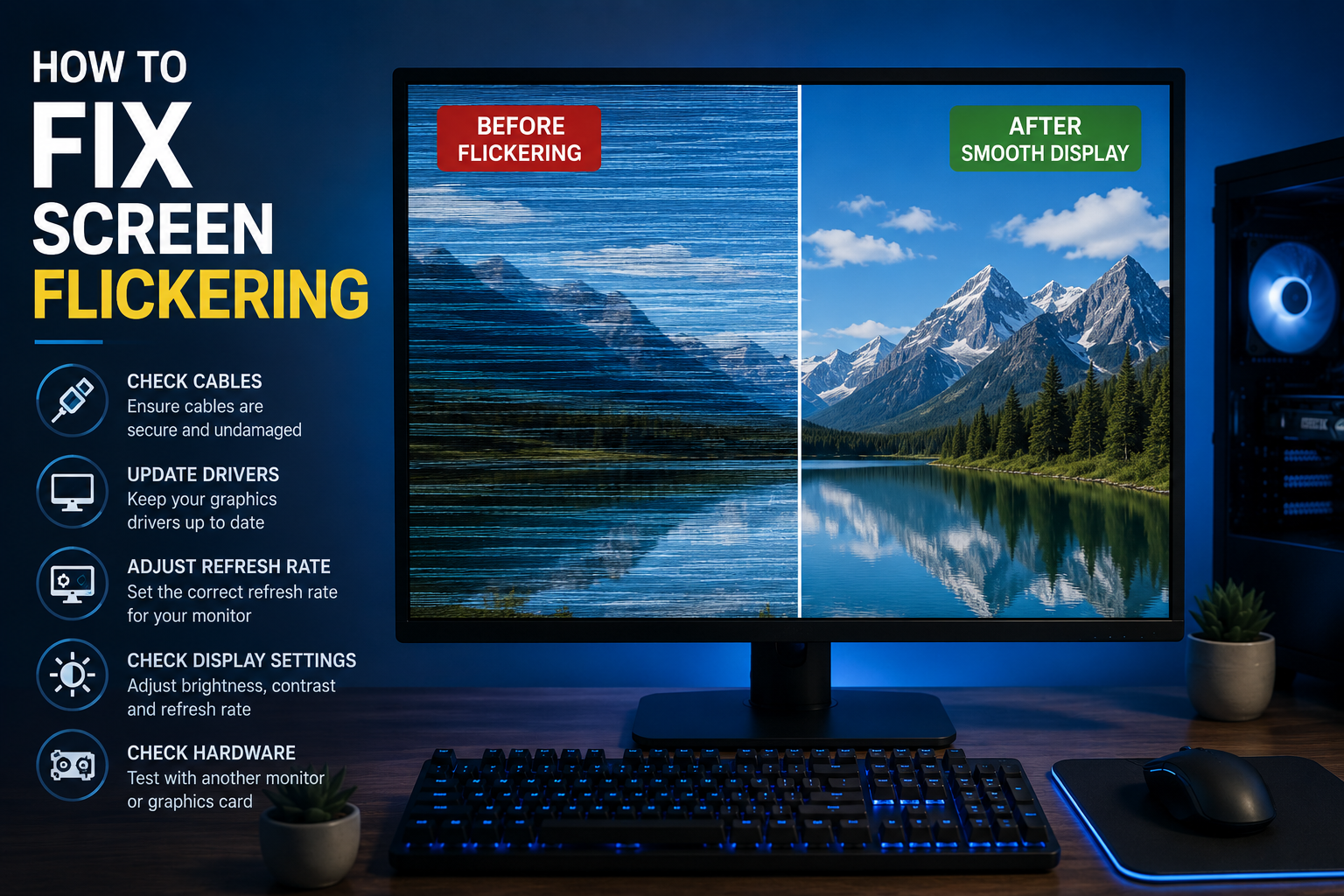
A flickering screen can mean anything from a loose cable to a failing display driver to actual hardware damage. The good news is there’s a quick test that tells you almost immediately whether you’re dealing with a software problem or something more serious — start there before trying anything else.
Step 1: The Task Manager Test (Diagnose Before You Fix)
This one test narrows down the cause faster than anything else:
- Press
Ctrl + Alt + Delete, orCtrl + Shift + Escif that doesn’t open Task Manager - Watch closely: does Task Manager itself flicker along with the rest of the screen?
- If Task Manager flickers too → it’s a display driver issue. Skip to Step 2.
- If Task Manager stays stable while everything else flickers → it’s an incompatible app causing the problem, not your driver. Skip to Step 4.
Step 2: Update or Roll Back Your Display Driver
Outdated or corrupted display drivers are the single most common cause of flickering.
- Right-click Start and open Device Manager
- Expand Display adapters
- Right-click your graphics card and select Update driver
- If flickering started right after a recent Windows Update, instead choose Properties > Driver tab > Roll Back Driver to undo it
If updating doesn’t help, try the more thorough reset: uninstall the driver entirely (Device Manager > right-click > Uninstall device > check “Delete the driver software for this device”) and restart — Windows will reinstall a clean version automatically.
Step 3: Reset Your Graphics Driver Instantly
Windows has a built-in shortcut that resets your graphics driver without a restart — worth trying before anything more involved:
- Press
Windows key + Ctrl + Shift + B
Your screen will go black for a second and you may hear a beep — that’s normal, it means the reset worked.
Step 4: Check for an Incompatible App
If Task Manager didn’t flicker in Step 1, an app is the likely cause.
- Close recently opened or recently updated apps one at a time and watch if the flickering stops
- Check if the app has a pending update, or try uninstalling and reinstalling it
- Common culprits include apps with custom display overlays (RGB lighting software, some antivirus tools, and older games)
Step 5: Check Your Cable and Connections
Physical connection issues cause flickering just as often as software does, especially on desktops with external monitors.
- Unplug the monitor cable, inspect it for visible damage, and firmly reconnect it at both ends
- Try a different cable if you have one — HDMI and DisplayPort cables degrade over time
- Try a different port on your graphics card or monitor to rule out a failing port
Step 6: Laptop Users — Check the Hinge
If flickering happens specifically when you move, tilt, or adjust your laptop’s screen, this points to a loose internal display cable near the hinge, not a driver issue. Software fixes won’t resolve this — it typically needs a technician to reseat or replace the internal cable.
Step 7: Adjust Your Refresh Rate
A refresh rate that’s too low, or mismatched between your monitor’s capability and Windows’ setting, can cause visible flicker, especially on older monitors.
- Windows: Settings > System > Display > Advanced display > set refresh rate to your monitor’s maximum supported value
- Mac: System Settings > Displays > select your display > check the refresh rate option if your monitor supports multiple rates
Step 8: Rule Out Power Fluctuations
Less common, but real: unstable power delivery can cause flickering, particularly on desktops.
- Try a different power outlet
- If you’re on a laptop, check if flickering happens only on battery or only while charging — this points to power delivery rather than the display itself
- A surge protector or UPS can help if your home’s power supply is inconsistent
When to See a Professional
If you’ve worked through software fixes and connection checks and the flickering persists — especially if it happens regardless of what’s on screen, or gets worse when the laptop is moved — the display panel or graphics card itself may be failing. At that point, a technician diagnosis is worth it before spending more time on software troubleshooting. Microsoft’s own screen flickering troubleshooting guide covers additional Windows-specific edge cases if you want to dig deeper before that step.
Flickering paired with general slowness or lag? Check our complete guide to fixing a slow computer to rule out a broader performance issue first.
